The Media page mirrors and complements my Travel page by organizing my photos and videos by month and year. Below are some tips on navigating the media section of my journal.
Viewing Photos
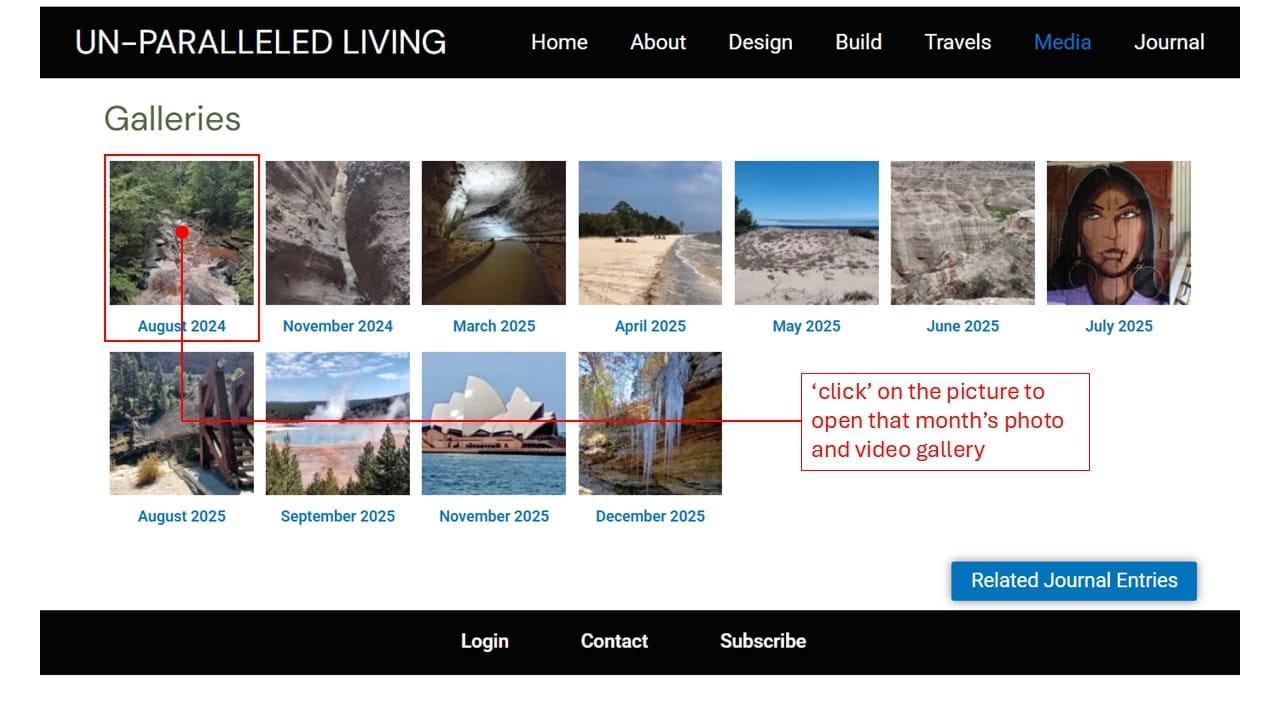
- On the Media tab, ‘click’ on a photo with month and year below. This will take you to that month’s photo and video gallery.
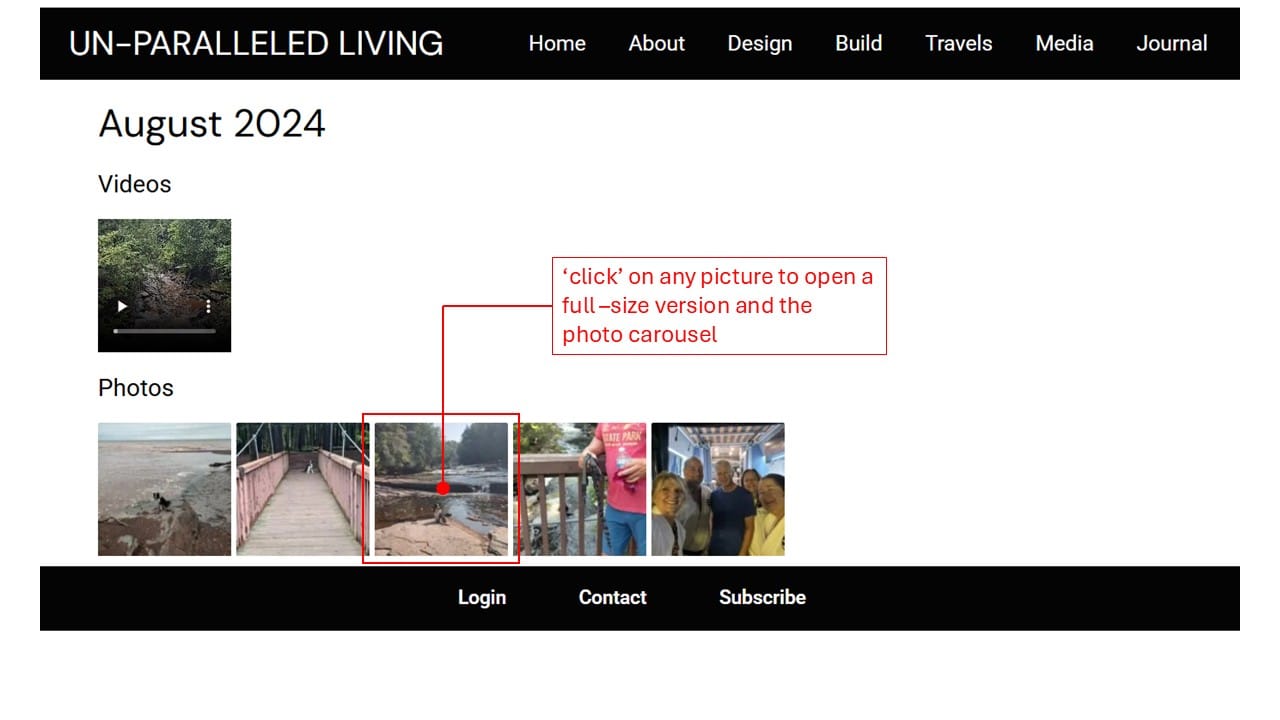
- To view the larger, full-size version of a picture, ‘click’ on the thumbnail photo.
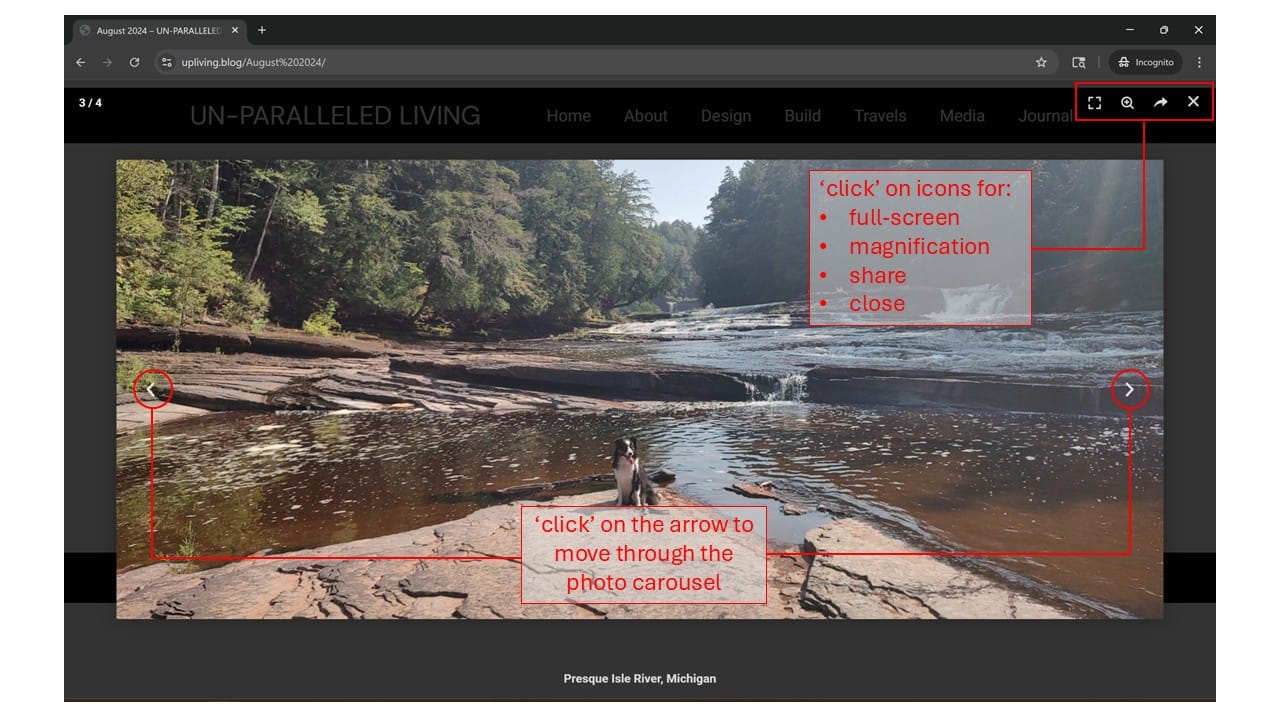
- Once you have opened a larger version, you can scroll through that month’s carousel of photos by “clicking” the caret (arrow) on left or right, or by using the keyboards arrow keys.
- In the upper right-hand corner of the photo carousel, are icons for:
- Opening and exiting full screen
- Zooming in and out
- Sharing or downloading
- Closing the carousel
Playing Videos
- On the Media tab, click’ on a photo with month and year below. This will take you to that month’s photo and video gallery.
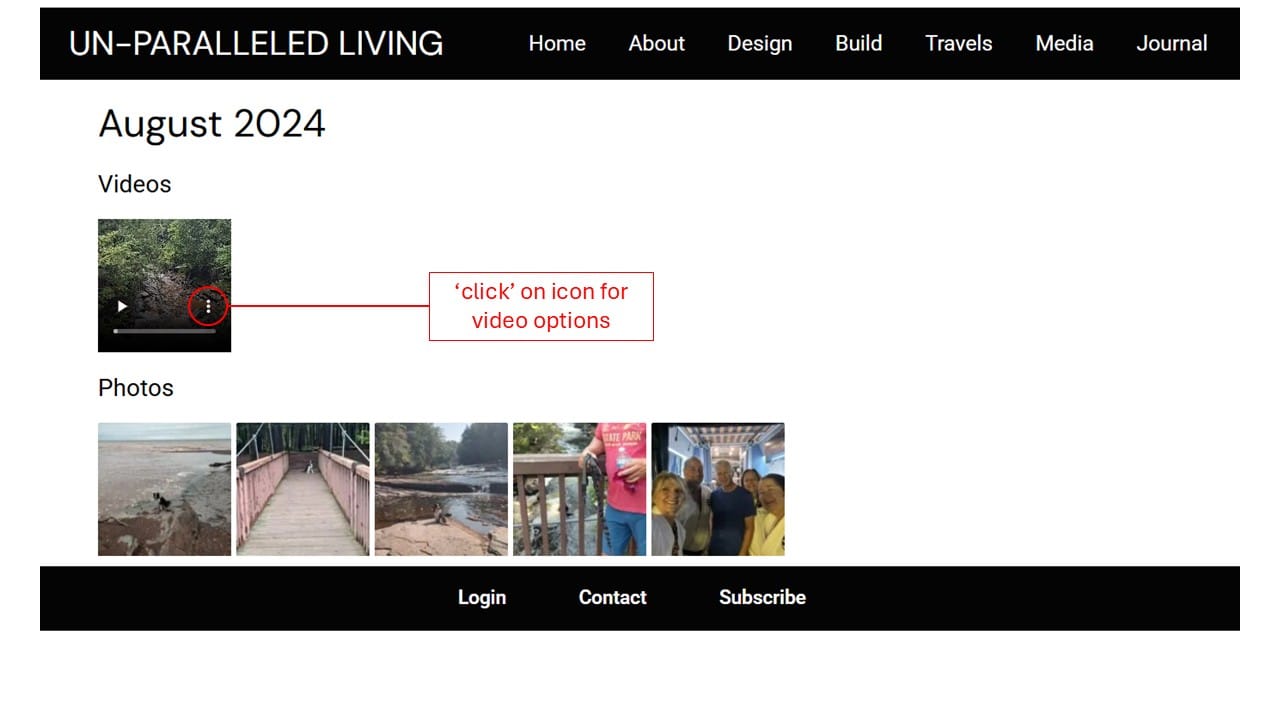
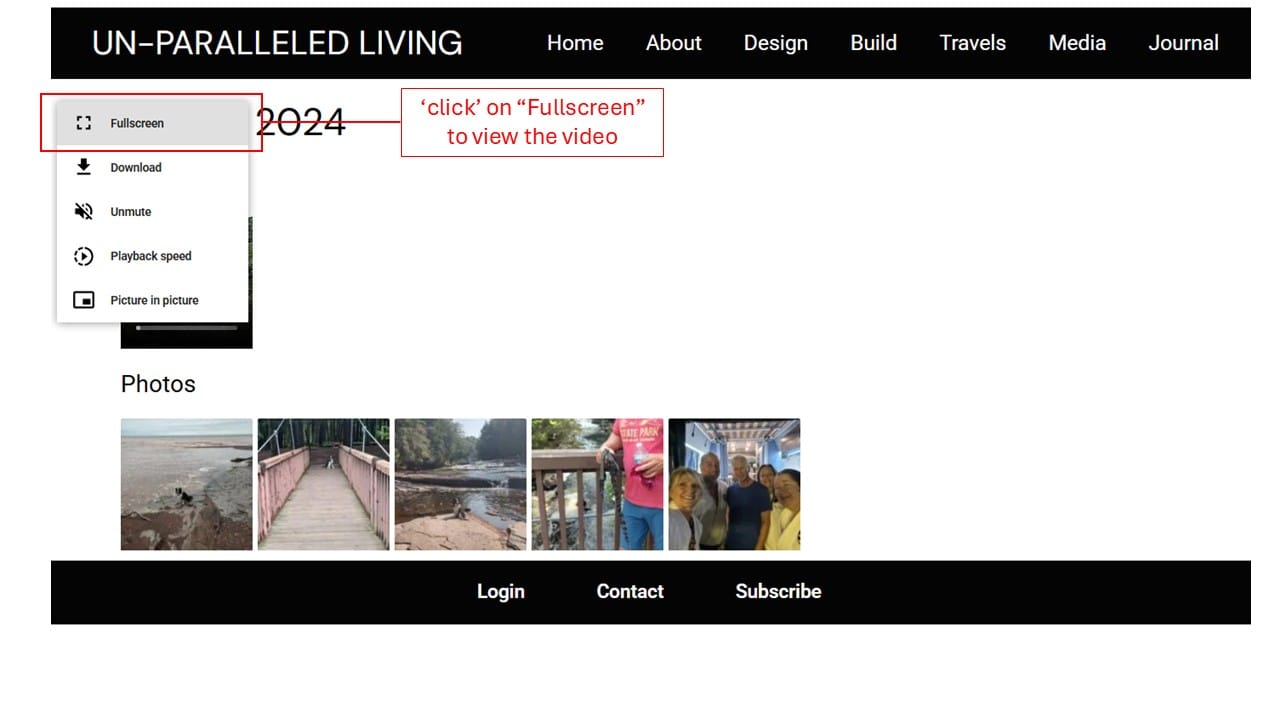
- To open and play a video, ‘click’ on the “three dots” for options.
- Choose “Fullscreen”
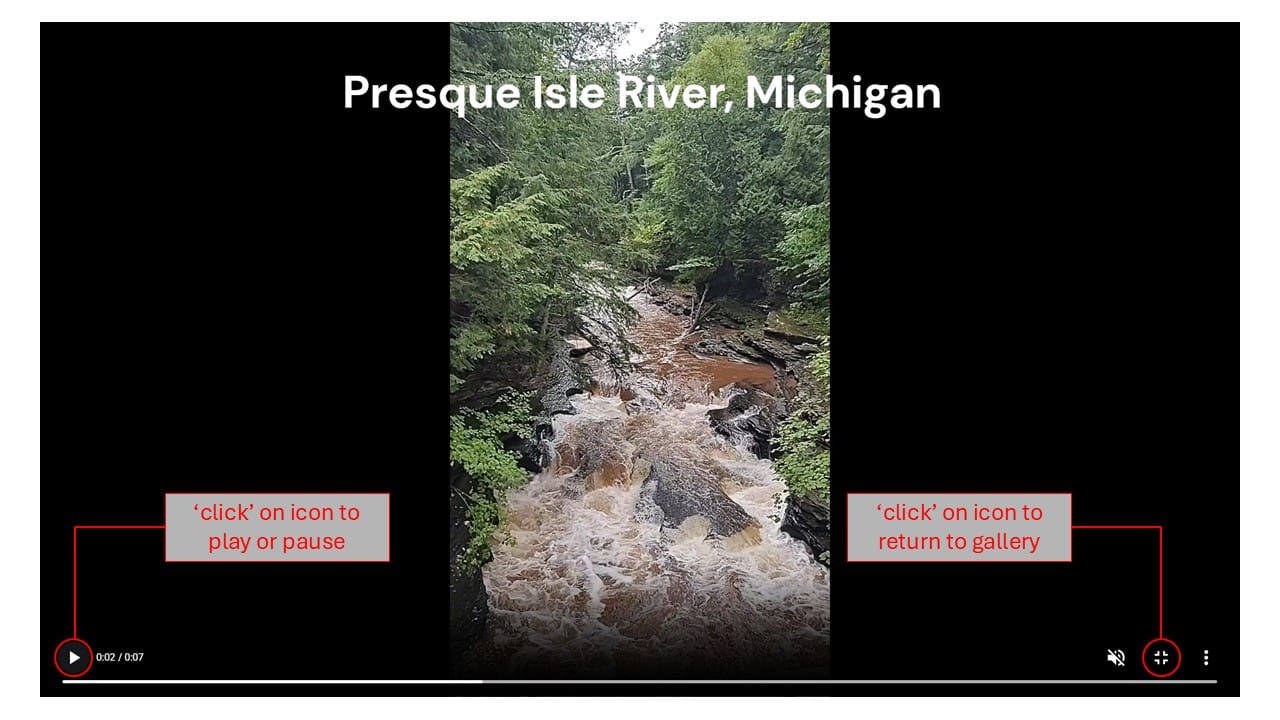
- Once the video is displayed on fullscreen, select the icons at the bottom to:
- Play and pause the video
- Mute or unmute
- Exit fullscreen and return to the gallery page
- Choose more options including download, playback speed and picture-in-picture